Slack.
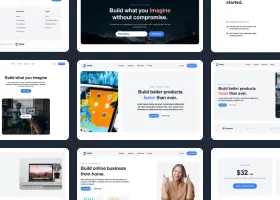
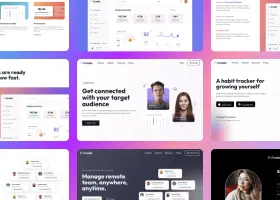
A Slack bot that uses Shuffle's Design CLI to create new designs or redesign existing websites when mentioned in a channel or messaged directly.
Features
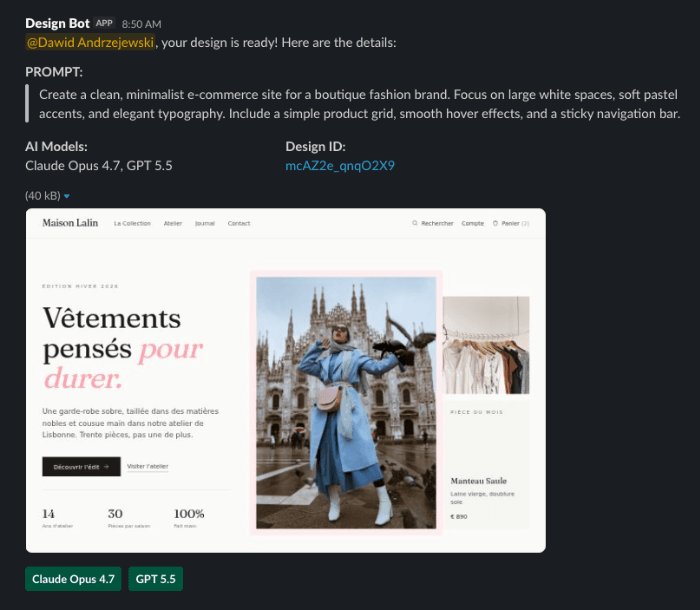
Turn everyday Slack messages into usable design outputs without switching tools or opening the terminal.
Mention the bot with a short prompt and create fresh landing page concepts directly from a Slack channel or DM.
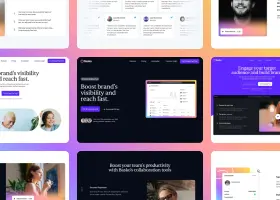
Send a URL with design direction and let the bot produce a refreshed version of the existing page with updated visual style.
Review results from Claude, GPT, Gemini, and Kimi so your team can compare ideas and pick the strongest direction.
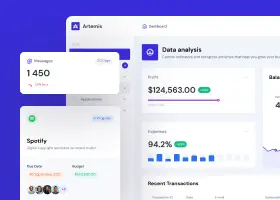
All generated projects are built with Tailwind CSS, editable in Shuffle, and ready to download.
Setup
This setup assumes you already have Shuffle's Design CLI installed.
Move the Design Slack Bot Example to the directory where you want to run and customize it.
From installed CLI package
cp -R ./node_modules/@shuffle-dev/cli/examples/design-slack-bot ./design-slack-bot
From GitHub
git clone https://github.com/shuffle-dev/cli
cp -R ./cli/examples/design-slack-bot ./design-slack-bot
Run this inside the directory where you copied design-slack-bot.
npm install
On the same user account that will run the bot.
npx @shuffle-dev/cli auth
Step a
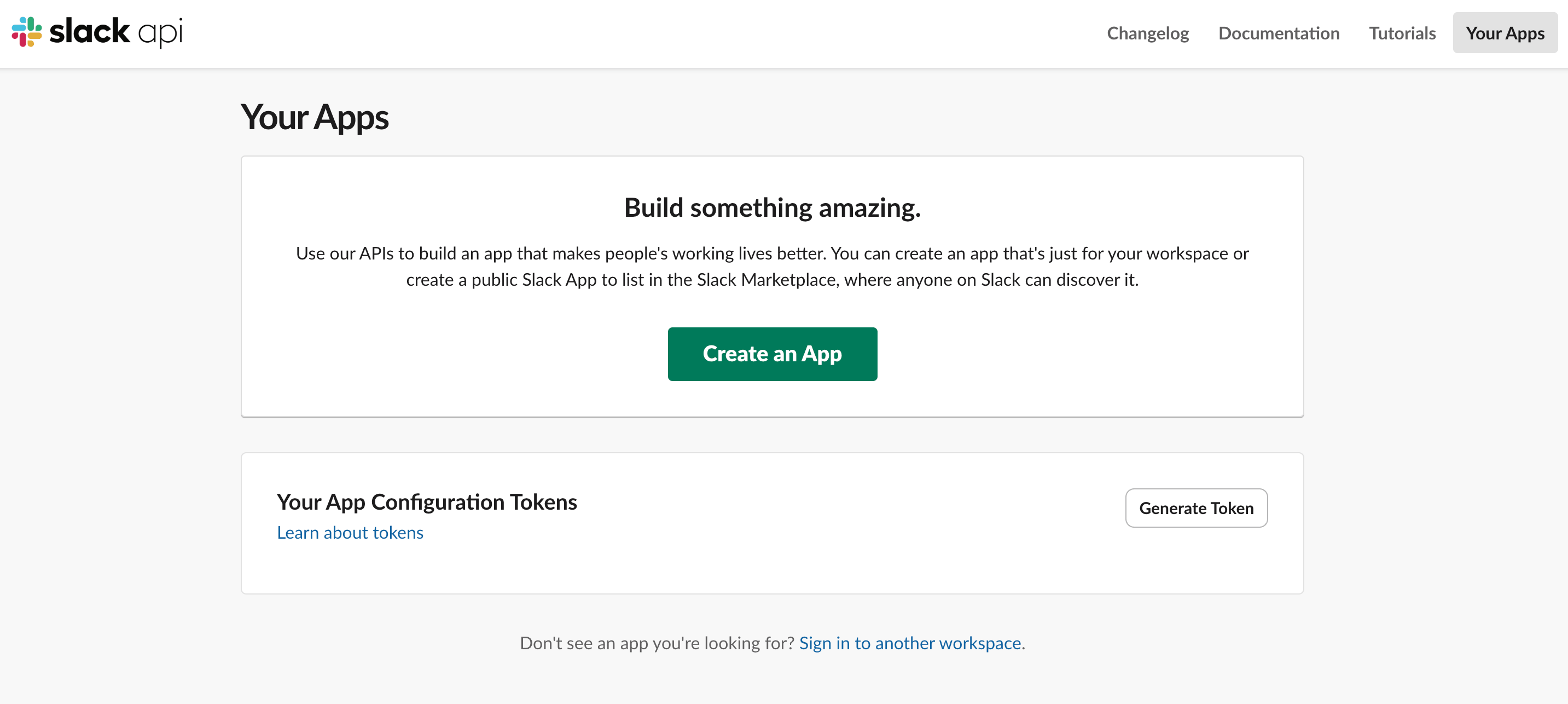
Start here: api.slack.com/apps
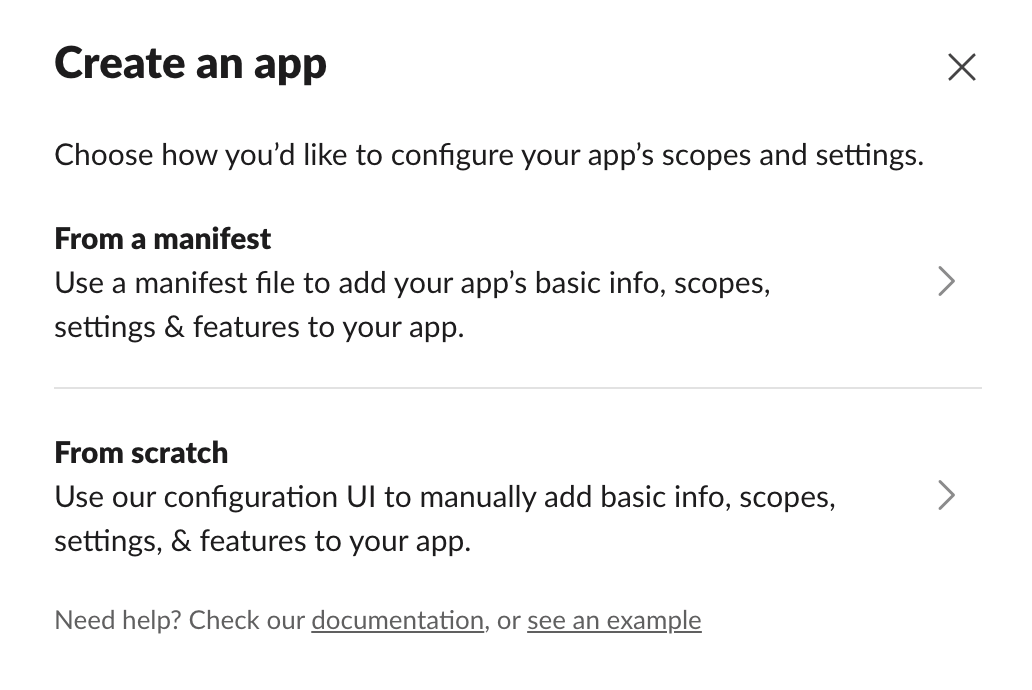
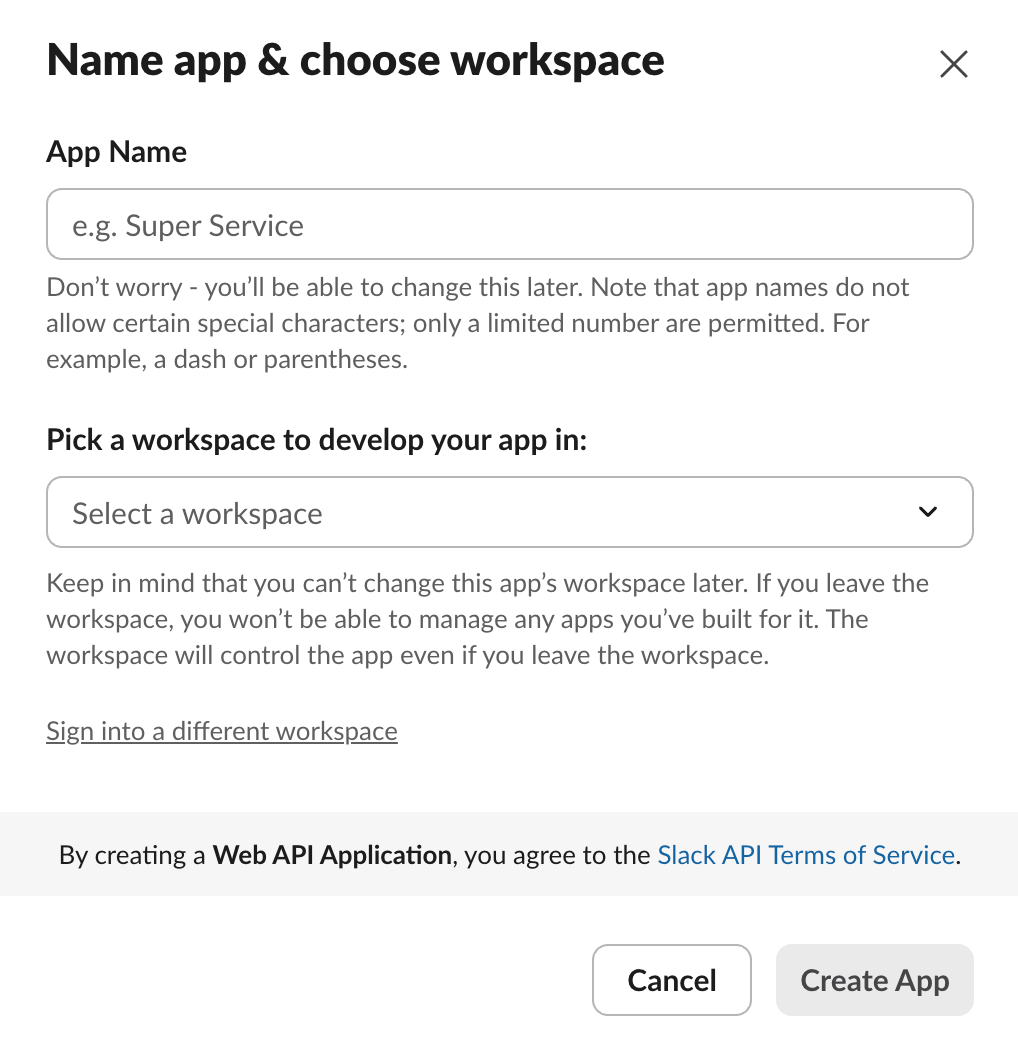
Choose From scratch, then name your app and pick your workspace.
Step b
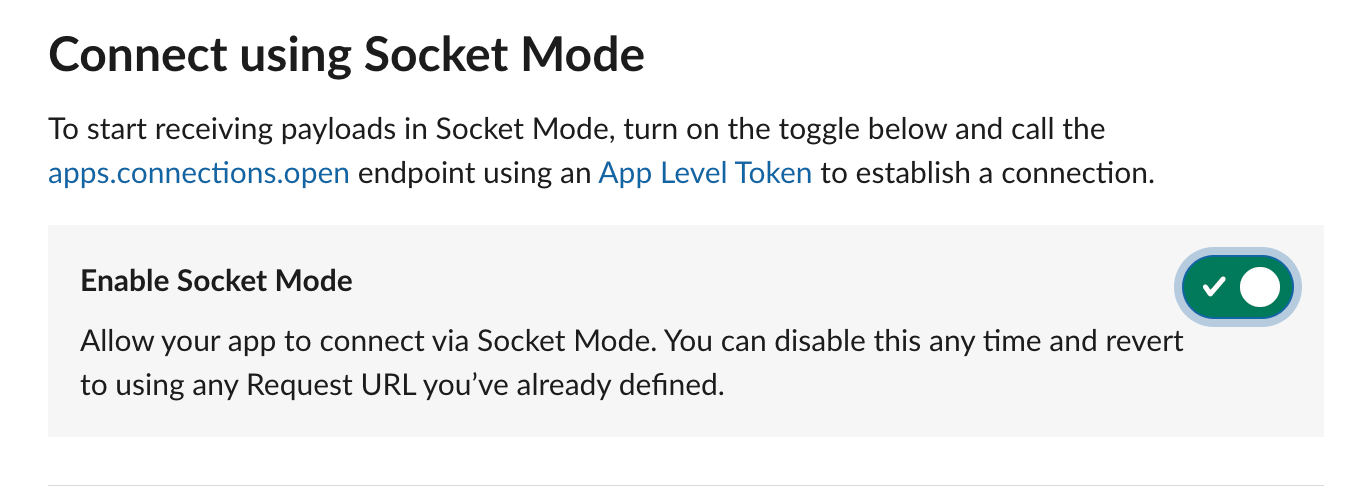
Enable Socket Mode - find it in the left sidebar under Socket Mode.
Step c
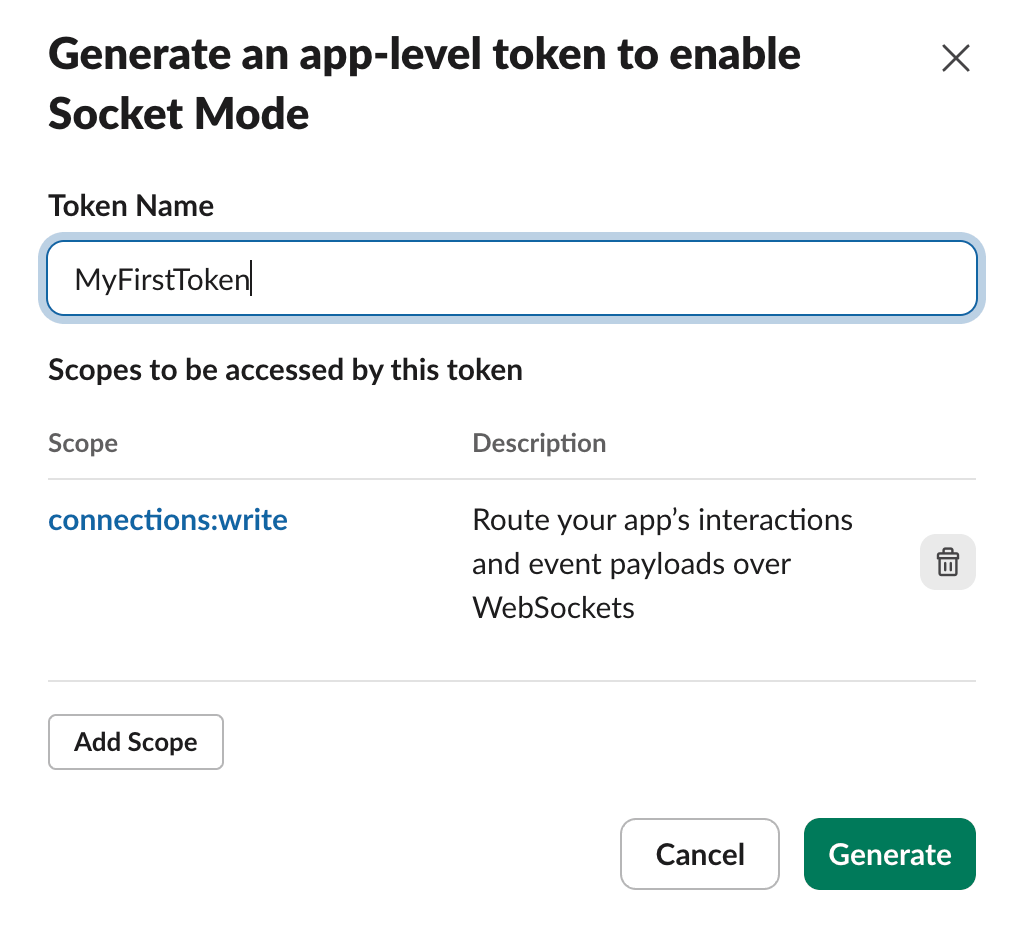
Go to Basic Information → App-Level Tokens. and create an App-Level Token with the connections:write scope.
Step d
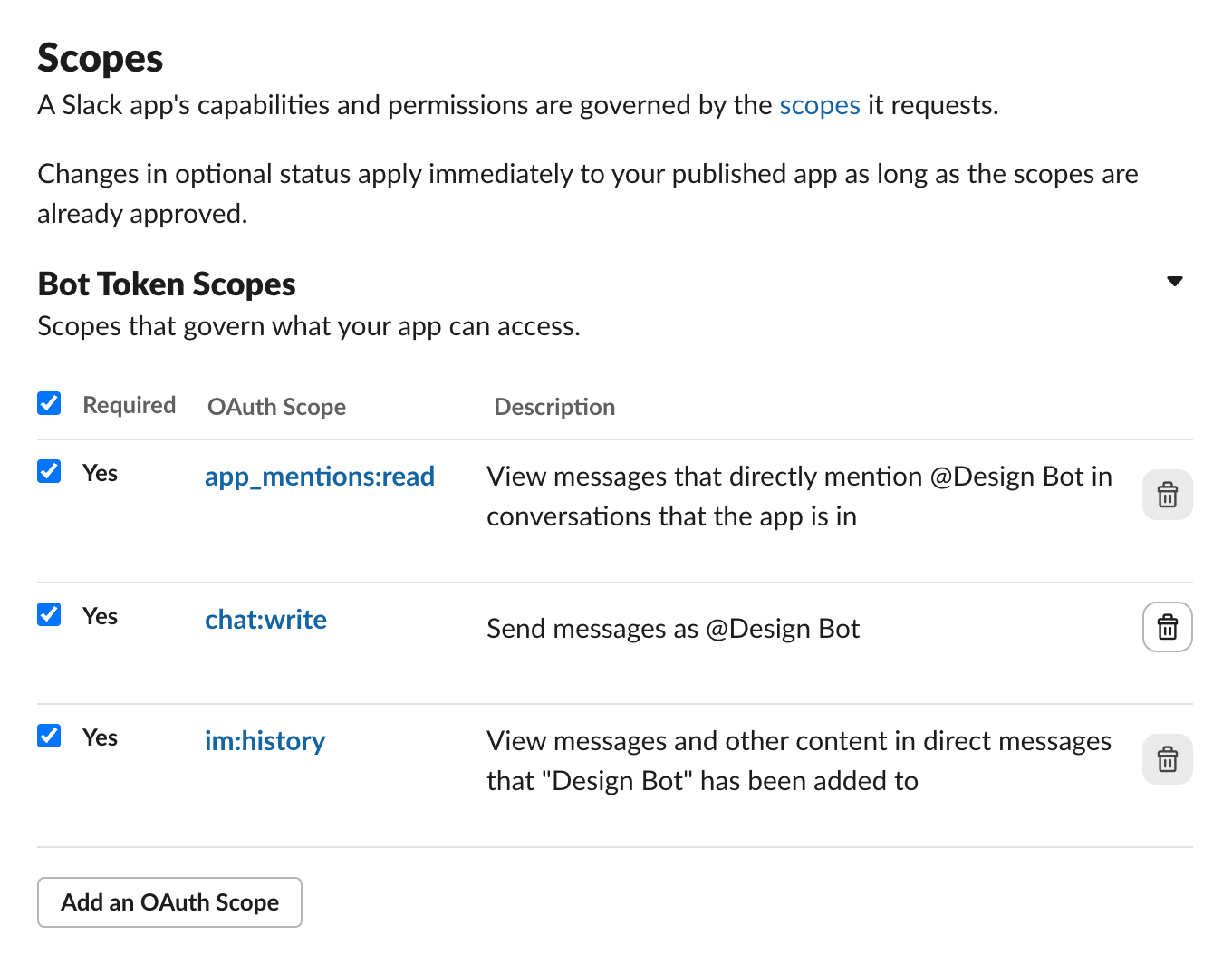
Add bot token scopes under OAuth & Permissions → Bot Token Scopes:
Step e
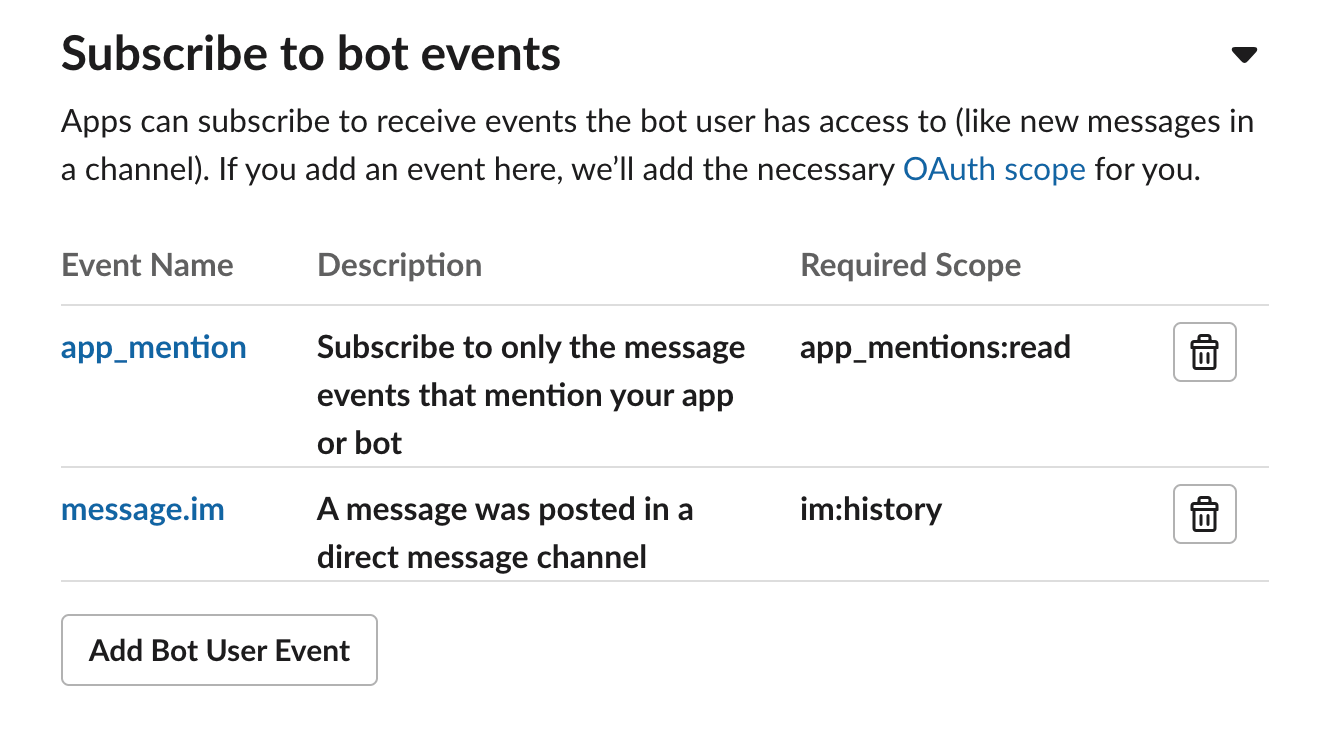
Subscribe to bot events under Event Subscriptions → Subscribe to bot events:
Step f
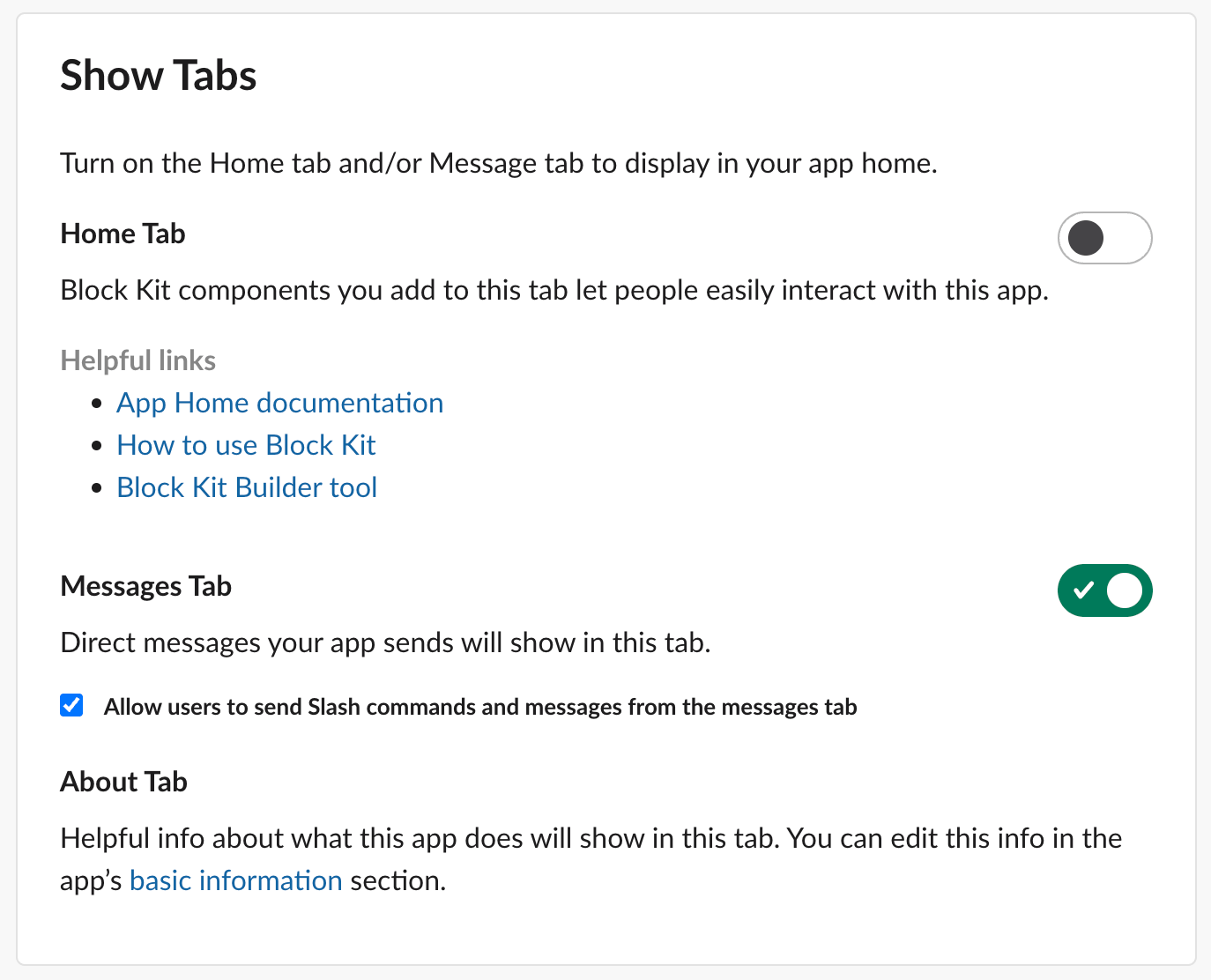
In App Home, enable the Messages Tab so users can DM the app directly.
Step g
Install the app to your workspace from Settings → Install app.
.envCopy the example file, then fill in your tokens. See all available environment variables.
cp .env.example .env
.env
Background logs are written to .runtime/bot.log.
Run in foreground
npm start
Manage in background
npm run start:background
npm run status:background
npm run stop:background
npm run restart:background
Usage
@DesignBot landing page for a B2B support automation platform with dark mode
@DesignBot https://example.com make this feel like a modern analytics dashboard
Start the message with a URL.
landing page for a B2B support automation platform with dark mode
No mention needed, just message the bot directly.
The bot replies in the same channel once Shuffle returns the results. Generation can take up to 3 minutes.
Shuffle Account
The bot uses your Shuffle account via the Shuffle CLI to run design models and generate outputs.
Design generations consume AI tokens. To verify your token balance, visit the dashboard. If you run out of tokens, you can purchase more.
Authenticated CLI
Run npx @shuffle-dev/cli auth on the machine that hosts the bot.
Token balance
Each design generation consumes AI tokens. Monitor usage in your Shuffle dashboard.
All top AI models
Claude Opus, GPT, Gemini Pro, Kimi - all supported via the SHUFFLE_MODEL env var.
Configuration
SHUFFLE_CLI
CLI command to run. Defaults to npx @shuffle-dev/cli.
SHUFFLE_MODEL
Model ID to use. Use either SHUFFLE_MODEL or SHUFFLE_ALL_MODELS=true - not both.
SHUFFLE_ALL_MODELS
Set to true to run all active models instead of a single model.
SHUFFLE_SCREENSHOT
Set to false to skip screenshot generation.
SHUFFLE_TIMEOUT_MS
CLI timeout in milliseconds. Defaults to 900000.
SLACK_LOG_LEVEL
Slack SDK logging level. Defaults to INFO; use DEBUG while diagnosing Socket Mode or event delivery issues.

Build websites faster with an AI Visual Editor



© 2026 Shuffle. All rights reserved.